 PicSwipe
There are two very different “mass delete” situations: wiping out everything (say, before selling a phone), and clearing most photos while keeping the ones that matter. Both are covered below — and if you're in the second camp, skip to the swipe method, because select-and-tap will eat your entire weekend.
Method 1: Select-and-drag in the Photos app
For deleting big contiguous blocks:
- Open Photos, view All Photos, and tap Select.
- Tap the first photo, then drag your finger across and up — selection accelerates as you drag toward the screen edge.
- Tap the trash icon, then confirm.
- Go to Albums → Recently Deleted → Delete All to actually free the space.
This is quick but blunt: at thumbnail size you can't tell a keeper from a blurry mistake, so it only suits photos you're sure about deleting wholesale.
Method 2: Bulk delete from iCloud.com or a Mac
On iCloud.com → Photos (or the Mac Photos app), click one photo, hold Shift, and click another to select the whole range — thousands at once if you like — then delete. Best for huge indiscriminate purges when you have a computer handy.
Method 3: Swipe through them — fast and selective
If the goal is “delete the 80% that's clutter, keep the 20% that's memories,” bulk selection fails because it makes you inspect thumbnails. PicSwipe flips the workflow: every photo appears full-screen once, and your thumb gives the verdict.
- Open PicSwipe and pick a month (each month is a self-contained session with a progress counter like 14/1299).
- Swipe left to delete, right to keep — under a second per photo, so a 500-photo month takes about ten minutes.
- Everything you swipe away collects in the PhotoBin. Empty it in one tap when you're done — that's your mass delete, executed safely.
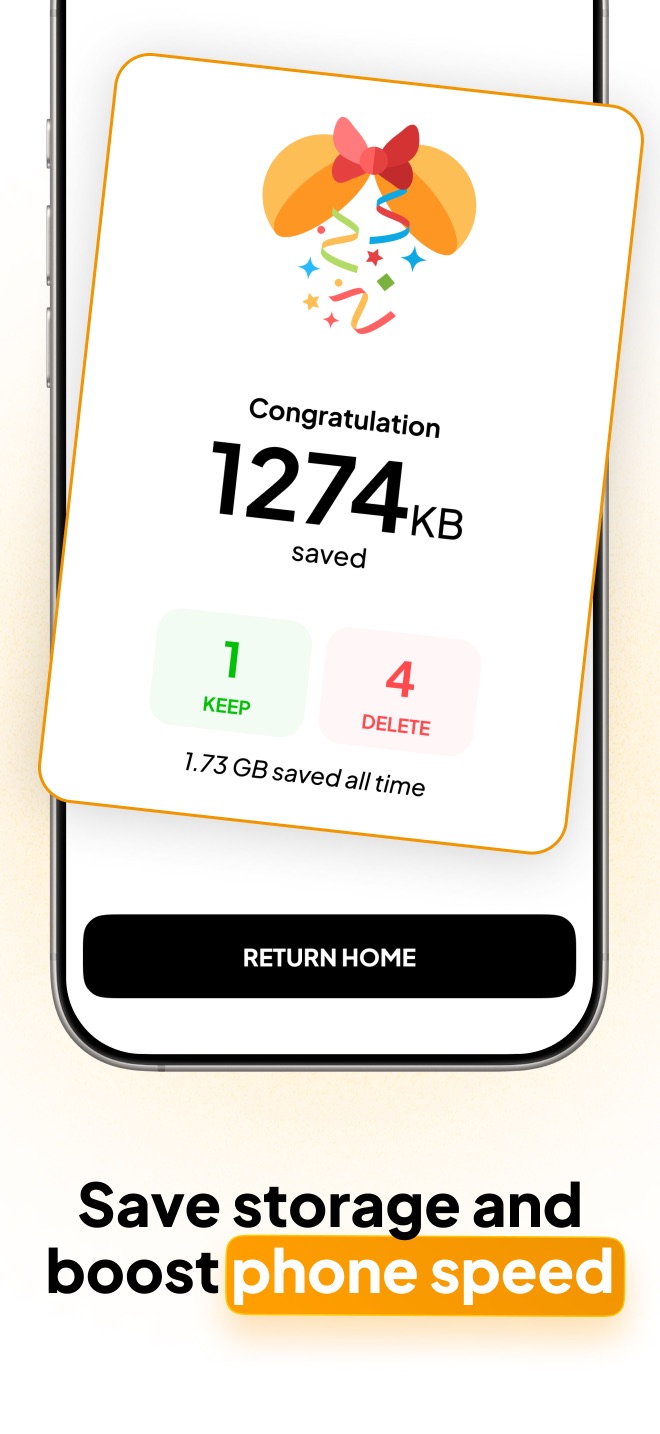
Bulk-clean a month in minutes
PicSwipe turns mass deletion into fast, safe, one-at-a-time decisions — with a bin you can review before anything is gone.

Which method should you use?
- Wiping everything: iCloud.com range-select, then empty Recently Deleted.
- Deleting a known block (e.g., an old WhatsApp import): Photos app select-and-drag.
- Everything else — clearing clutter while keeping memories: swipe through it with PicSwipe, month by month. It's the only method where speed doesn't cost you your good photos.
Frequently asked questions
What is the fastest way to delete thousands of photos on iPhone?
Selecting-and-dragging in the Photos app is fastest for deleting everything indiscriminately. If you want to keep your good photos, a swipe cleaner like PicSwipe is faster in practice because each keep-or-delete decision takes under a second.
If I mass delete photos, are they gone forever?
Not immediately. Deleted photos sit in the Recently Deleted album for 30 days before permanent removal. To free space instantly, empty Recently Deleted manually.
Will mass deleting photos on my iPhone also delete them from iCloud?
Yes — if iCloud Photos is on, deletions sync everywhere. That's what frees up your iCloud storage, but make sure you want a photo gone before emptying Recently Deleted.