 PicSwipe
Screenshots are the junk mail of your photo library: they arrive constantly, serve a purpose for about a day, and then sit there forever. A year of casual screenshotting easily adds up to a thousand images. Here are the two ways to deal with them — the nuclear option and the smart option.
Option 1: Delete every screenshot at once
iOS keeps all screenshots in a dedicated album:
- Open Photos → Albums, scroll to Media Types, and tap Screenshots.
- Tap Select, then Select All (or drag to select a range).
- Tap the trash icon and confirm.
- Empty Recently Deleted to free the space now rather than in 30 days.
Fast and satisfying — but risky if some screenshots still matter: order confirmations, insurance documents, that recipe you never wrote down. Select All can't tell the difference.
Option 2: Swipe through them and keep the keepers
Screenshots are the perfect swipe material — each one is instantly judgeable the moment you see it full-screen. In PicSwipe, screenshots appear within their month alongside your other photos:
- Open a month and start swiping. When a screenshot appears, you can actually read it before deciding — something thumbnail grids never let you do.
- Swipe left on the expired ones (99% of them), right on the rare keeper.
- Empty the PhotoBin when the month is done.
Because screenshot decisions take a fraction of a second, months dominated by screenshots clear at incredible speed — clearing a whole year is a single coffee-break session.
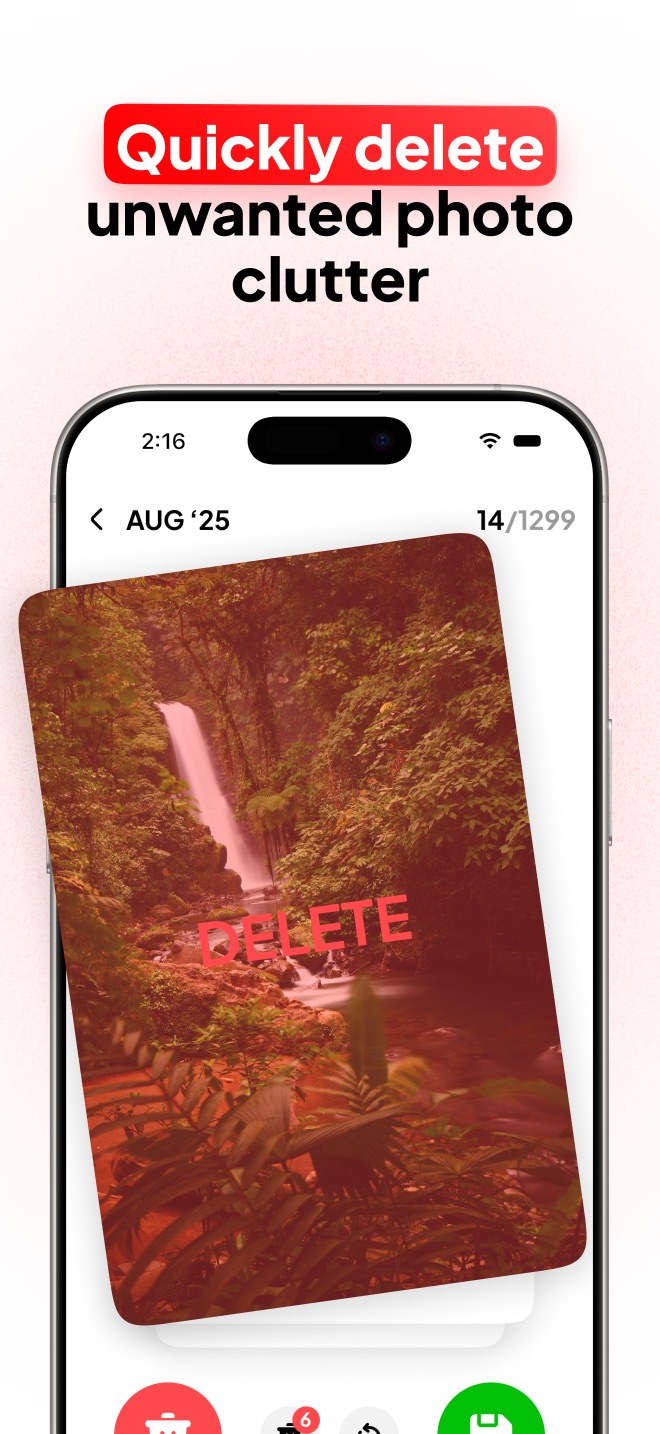
Swipe the screenshot pile away
Screenshots take half a second each to judge. PicSwipe makes clearing a year of them a single coffee-break session.

Frequently asked questions
Can I delete all screenshots on iPhone at once?
Yes. Open Photos → Albums → Media Types → Screenshots, tap Select, then Select All, and delete. Empty Recently Deleted afterwards to free the space immediately.
Should I delete screenshots to free up storage?
Screenshots are usually the highest-value deletion target: they pile up by the hundreds, are almost never needed again, and unlike photos they carry no sentimental value. Most are pure storage waste.
How do I keep a few important screenshots while deleting the rest?
Swipe through them in PicSwipe: each screenshot appears full-screen, so you can read it and instantly decide — right to keep the two that matter, left on everything else.