 PicSwipe
That “iPhone Storage Almost Full” warning nearly always traces back to one thing: the photo library. The good news is you don't have to sacrifice memories or start paying for a bigger iCloud plan. Work through these steps in order — they're sequenced by how many gigabytes they typically recover per minute of effort.
1. Empty Recently Deleted (the 30-second win)
Photos you've already deleted keep occupying storage for 30 days. Go to Photos → Albums → Recently Deleted → Delete All. If you've been deleting things lately, this alone can free a gigabyte or more instantly.
2. Delete the clutter you'll never miss
The average camera roll is full of photos nobody would choose to keep: duplicate shots, screenshots of expired boarding passes, blurry accidents, and photos of parking spots from 2023. At 2–8 MB each, a few thousand of these equals several gigabytes.
The fastest safe way to clear them is a swipe session with PicSwipe:
- Open PicSwipe — your library appears grouped by month.
- Start with your biggest months and swipe left on everything that isn't a memory: duplicates, screenshots, blur, receipts.
- Review the PhotoBin and delete permanently. PicSwipe shows the megabytes saved after every session, plus an all-time total (users routinely pass the 1 GB mark within days).
- Empty Recently Deleted again to realize the savings immediately.
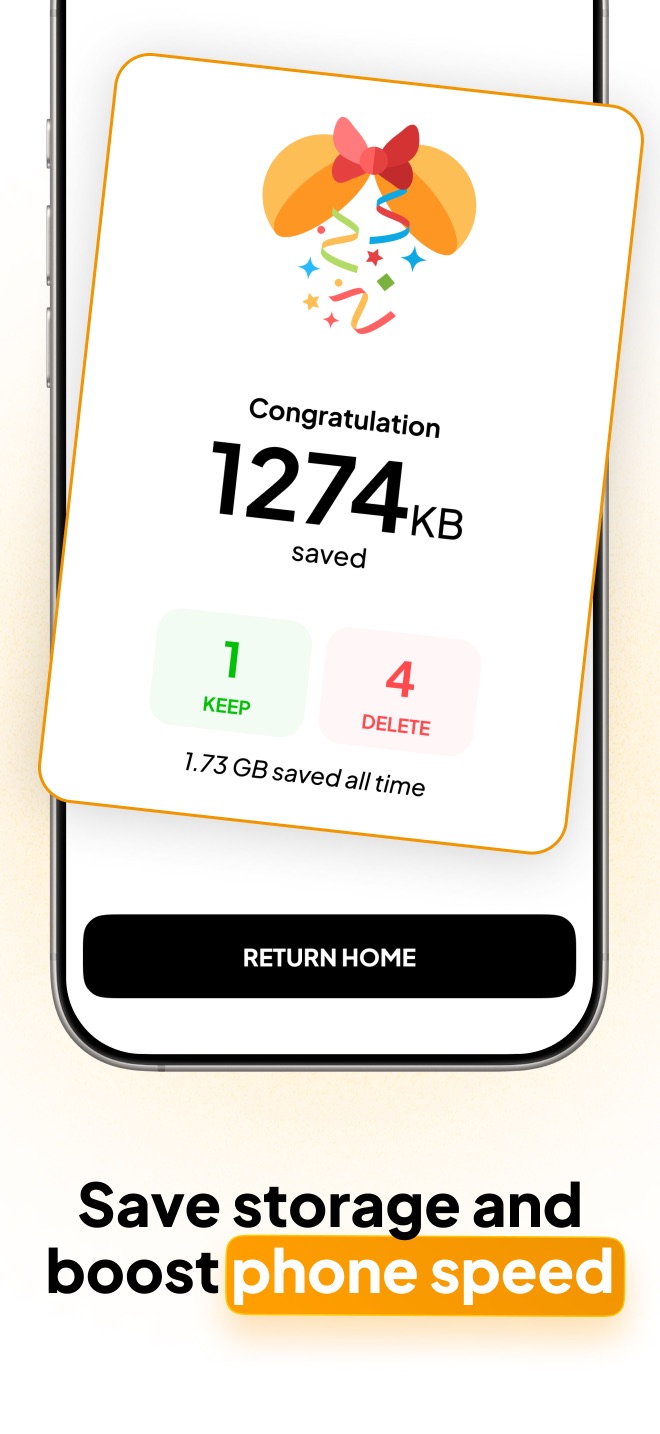
Reclaim gigabytes this week
Most people free 2–5 GB in their first few PicSwipe sessions. The counter shows you exactly what you've saved.

3. Turn on Optimize iPhone Storage
If you pay for iCloud, go to Settings → Photos → Optimize iPhone Storage. Full-resolution originals live in iCloud while your device keeps lightweight versions. Two caveats: you need an iCloud plan that fits your library, and clutter still counts against that plan — which is why cleaning first (step 2) matters even with optimization on.
4. Check the other usual suspects
- Videos: sort by file size in Photos (Albums → Media Types → Videos). A single 4K minute is ~400 MB.
- Messages attachments: Settings → General → iPhone Storage → Messages shows old GIFs and videos you can purge.
- Offloaded apps: Settings → App Store → Offload Unused Apps removes app binaries but keeps your data.
But start with photos. It's where the gigabytes are, and with a swipe cleaner it's genuinely the easiest win — no cables, no computer, no subscription required.
Frequently asked questions
Why is my iPhone storage full even after deleting photos?
Deleted photos stay in the Recently Deleted album for 30 days and still count against storage. Open Albums → Recently Deleted → Delete All to free the space immediately.
How do I free up iPhone storage without deleting apps?
Photos and videos are usually the biggest storage consumer. Deleting duplicates, screenshots, and blurry shots with a photo cleaner typically recovers several gigabytes — more than removing most apps would.
Does Optimize iPhone Storage delete my photos?
No. It keeps full-resolution originals in iCloud and stores smaller versions on the device. You need an iCloud plan large enough for your library, and clutter still counts against iCloud — so cleaning first still pays off.