 PicSwipe
Duplicates creep into every iPhone library: burst shots, re-saved edits, WhatsApp re-downloads, AirDrops from friends, and the five almost-identical takes of the same sunset. Here's how to remove them for free — first with Apple's built-in tool, then with a faster method for the near-duplicates Apple can't see.
Step 1: Merge exact duplicates with Apple's built-in tool
Since iOS 16, the Photos app detects exact duplicate files automatically:
- Open Photos and tap Albums.
- Scroll down to Utilities and tap Duplicates.
- Tap Merge on each pair (or Select → Merge All). Photos keeps the highest-quality version and moves the rest to Recently Deleted.
Do this first — it's free and instant. But note its limit: it only flags exact or nearly exact copies. Five burst photos of the same moment, or a photo and its slightly cropped edit, won't appear here at all.
Step 2: Swipe away the near-duplicates Apple misses
Near-duplicates are where the real storage hides — and they're a judgment call only you can make. Which of the five group shots has everyone's eyes open? That's exactly what a swipe cleaner is for:
- Open PicSwipe — your photos are grouped by month, in the order you shot them.
- Pick a photo-heavy month (vacations and holidays are goldmines).
- Because photos appear full-screen and back-to-back, every cluster of similar shots is obvious. Swipe right on the keeper, left on the rest.
- Open the PhotoBin, review what you swiped away, and delete permanently.
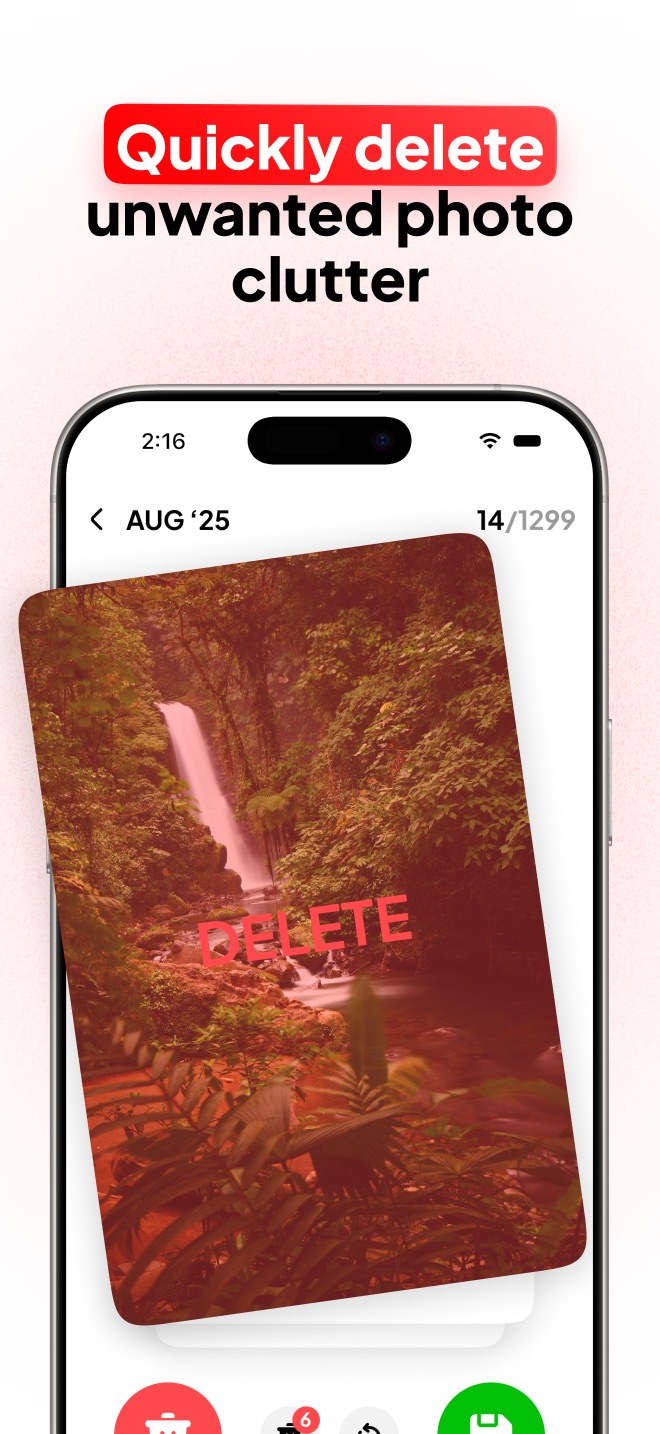
Clear the near-duplicates Apple misses
PicSwipe shows your photos back-to-back, full screen, so twin shots are obvious. Swipe the worst one away.

How much space will this actually free?
A typical iPhone photo weighs 2–4 MB (HEIC) and up to 8 MB as a JPEG; Live Photos roughly double that. If your library holds 10,000 photos and even 15% are duplicates or near-duplicates — a normal ratio — that's 3 to 6 GB waiting to be reclaimed in an afternoon of casual swiping. PicSwipe's storage counter shows your exact total after every session, which makes it surprisingly easy to keep going.
Frequently asked questions
Does iPhone have a built-in duplicate photo remover?
Yes. On iOS 16 and later, open Photos → Albums → Utilities → Duplicates and tap Merge. It only catches exact or nearly exact copies, though — burst shots and similar photos are not detected.
How do I delete similar photos that aren't exact duplicates?
Use a swipe photo cleaner like PicSwipe. Because photos appear one at a time in chronological order, similar shots show up back-to-back and you can keep the best one and swipe the rest away.
Do duplicates take up iCloud space too?
Yes. Every duplicate counts against both device storage and your iCloud plan if you sync photos, so removing them saves space in both places.