 PicSwipe
Short answer: while iCloud Photos is turned on, you can't. iCloud Photos is a sync service, not a separate copy — your iPhone and iCloud show the same single library, so deleting a photo in one place deletes it everywhere within seconds. To keep photos on your iPhone but remove them from iCloud, you first have to break the sync and download the originals to the device. Here's exactly how.
Why deleting from iCloud also deletes from your iPhone
Most people expect iCloud to be a backup — a second, independent copy you can prune without touching the phone. It isn't. iCloud Photos mirrors one library across every device signed into your Apple Account. That's why a photo you delete on iCloud.com vanishes from your iPhone, iPad, and Mac almost instantly. To delete from iCloud only, you have to make the iPhone stop mirroring first.
Step 1: Download your originals to the iPhone
This is the safety step — do it before deleting anything, or you can lose photos.
- Open Settings and tap your name at the top.
- Tap iCloud → Photos.
- Turn off Sync this iPhone (older iOS calls it iCloud Photos).
- When prompted, choose Download Photos & Videos — not "Remove from iPhone." iOS pulls every full-resolution original onto the device.
- Wait for the download to finish (Wi-Fi, plugged in). A large library can take a while and needs enough free space — check how to free up iPhone storage first if the device is nearly full.
Once this completes, your photos live independently on the iPhone. Deleting them from iCloud will no longer touch the phone.
Step 2: Delete the photos from iCloud
With sync off on your iPhone, remove the iCloud copies from any other place that still has access:
- Go to iCloud.com → Photos in a browser (or use another device still signed in).
- Select the photos you want gone from iCloud and delete them.
- Empty Recently Deleted to reclaim the space immediately instead of waiting 30 days.
The fix most people actually want
Nine times out of ten, the real goal isn't "keep this junk on my phone but off iCloud" — it's free up a full iCloud plan without losing the memories that matter. In that case, separating the two libraries is the hard way around. The simpler path is to delete the photos you don't want anywhere: the blurry shots, the 12 near-identical burst frames, the expired screenshots. Because iCloud Photos syncs, clearing that clutter once frees your device and your iCloud storage in the same pass.
That triage is exactly what PicSwipe makes fast. Your library shows up grouped by month in full-screen cards — swipe left to bin a photo, right to keep it. Duplicates and burst shots land back-to-back, so the junk is obvious, and a running storage counter shows how much you've reclaimed.
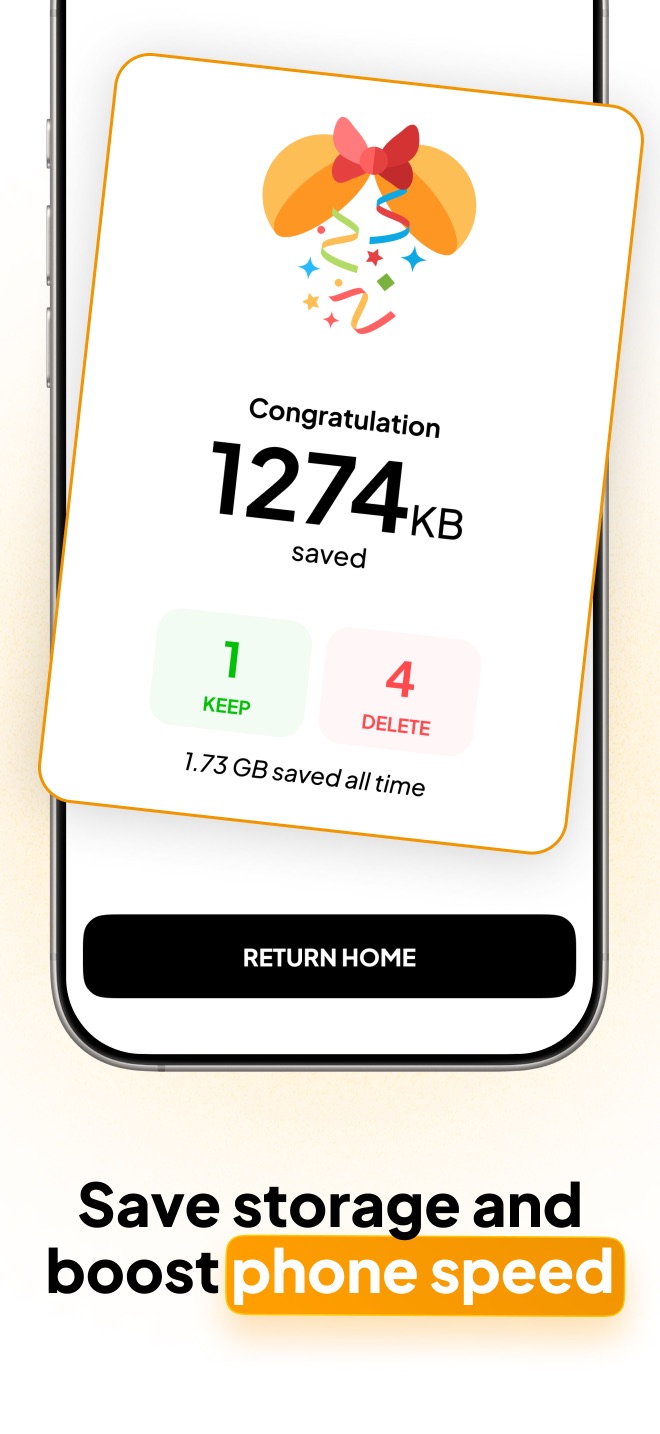
Free your iCloud plan the easy way
Swipe away the duplicates, screenshots, and blurry shots that eat your storage. Clear them once and it's gone from your iPhone and iCloud together.

When keeping them separate does make sense
There are legitimate reasons to split the libraries: you're running low on an iCloud plan you don't want to upgrade but you're not ready to part with the photos, or you're handing a device to family and want the memories to stay local. In those cases the Step 1 → Step 2 route above is correct — just confirm the on-device download completed and that you have a separate backup (a Mac, a PC via Finder, or an external drive) before you empty Recently Deleted in iCloud. Sync is convenient, but it is not a backup.
Frequently asked questions
Can I delete photos from iCloud without deleting them from my iPhone?
Not while iCloud Photos sync is turned on — it keeps one shared library, so deleting a photo anywhere deletes it everywhere. To separate them, turn off iCloud Photos on the iPhone and choose Download Photos & Videos so full-resolution originals stay on the device. Once the download finishes, the photos live only on that iPhone and you can delete them from iCloud.
Why do photos deleted from iCloud.com disappear from my iPhone too?
Because iCloud Photos is a sync service, not a backup. There is a single library that every signed-in device mirrors, so a deletion on iCloud.com propagates to your iPhone, iPad, and Mac within seconds.
Does deleting photos from my iPhone free up iCloud storage?
Yes, if iCloud Photos is on. Deleting a photo on the iPhone removes it from iCloud as well once Recently Deleted is emptied. For most people this is the goal anyway — clearing junk once frees both your device and your iCloud plan.